Codes
1)
using
System;
using System.Net.Http;
using System.Text;
using System.Threading.Tasks;
using System.Windows.Forms;
using Newtonsoft.Json; // You'd add this via NuGet for JSON serialization/deserialization
2)
private const string GeminiApiKey = "xxxxxxxxxxxxxxxxxx";
// Replace with your actual API key
private const string GeminiApiUrl = "https://generativelanguage.googleapis.com/v1beta/models/gemini-2.0-flash:generateContent?key=" + GeminiApiKey;
3)
private async void button1_Click(object sender, EventArgs e)
{
label1.Text = GeminiApiUrl;
string userInput = inputTextBox.Text;
if (string.IsNullOrWhiteSpace(userInput))
{
MessageBox.Show("Please enter some text.");
return;
}
try
{
using (HttpClient client = new HttpClient())
{
var requestBody = new
{
contents = new[]
{
new
{
parts = new[]
{
new { text = userInput }
}
}
}
};
string jsonContent = JsonConvert.SerializeObject(requestBody);
HttpContent httpContent = new StringContent(jsonContent, Encoding.UTF8, "application/json");
HttpResponseMessage response = await client.PostAsync(GeminiApiUrl, httpContent);
response.EnsureSuccessStatusCode();
string responseBody = await response.Content.ReadAsStringAsync();
dynamic geminiResponse = JsonConvert.DeserializeObject(responseBody);
string generatedText = geminiResponse.candidates[0].content.parts[0].text;
outputTextBox.Text = generatedText;
}
}
catch (HttpRequestException httpEx)
{
outputTextBox.Text = $"Error: {httpEx.Message}. Check your API key";
}
catch (Exception ex)
{
outputTextBox.Text = $"An unexpected error occurred: {ex.Message}";
}
finally
{
}
}
4)
private async void button2_Click(object sender, EventArgs e)
{
using (HttpClient client = new HttpClient())
{
try
{
string url = "https://www.google.com"; // or your API URL
HttpResponseMessage response = await client.GetAsync(url);
if (response.IsSuccessStatusCode)
{
MessageBox.Show("HTTP connection successful!");
}
else
{
MessageBox.Show("Connected, but error: " + response.StatusCode);
}
}
catch (Exception ex)
{
MessageBox.Show("Connection failed:\n" + ex.Message);
}
}
}
5)
String query1 = "";
private async void button3_Click(object sender, EventArgs e)
{
query1 += "Give basic info about this country: " + listBox1.SelectedItem.ToString();
//label2.Text = query1;
string userInput = query1;
try
{
using (HttpClient client = new HttpClient())
{
var requestBody = new
{
contents = new[]
{
new
{
parts = new[]
{
new { text = userInput }
}
}
}
};
string jsonContent = JsonConvert.SerializeObject(requestBody);
HttpContent httpContent = new StringContent(jsonContent, Encoding.UTF8, "application/json");
HttpResponseMessage response = await client.PostAsync(GeminiApiUrl, httpContent);
response.EnsureSuccessStatusCode(); // Throws an exception for HTTP error codes
string responseBody = await response.Content.ReadAsStringAsync();
dynamic geminiResponse = JsonConvert.DeserializeObject(responseBody);
// Extracting the text from the response - adjust based on actual API response structure
string generatedText = geminiResponse.candidates[0].content.parts[0].text;
richTextBox1.Text = generatedText;
}
}
catch (HttpRequestException httpEx)
{
label2.Text = $"Error: {httpEx.Message}. Check your API key and network connection.";
}
catch (Exception ex)
{
label2.Text = $"An unexpected error occurred: {ex.Message}";
}
finally
{
// submitButton.Enabled = true;
}
}
Try
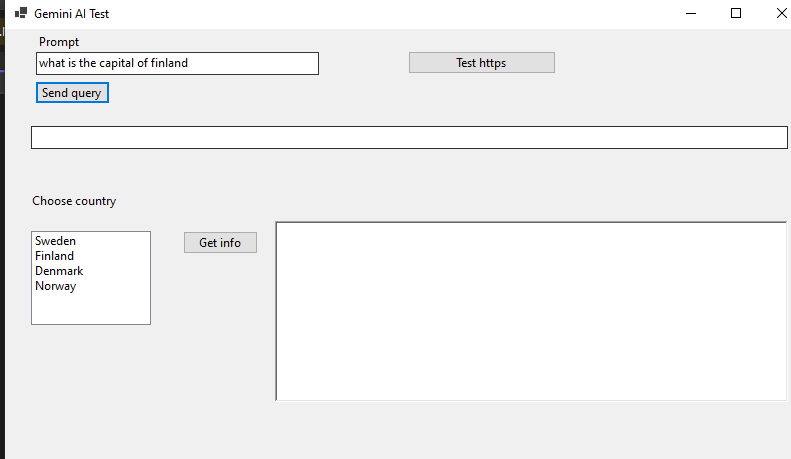

And
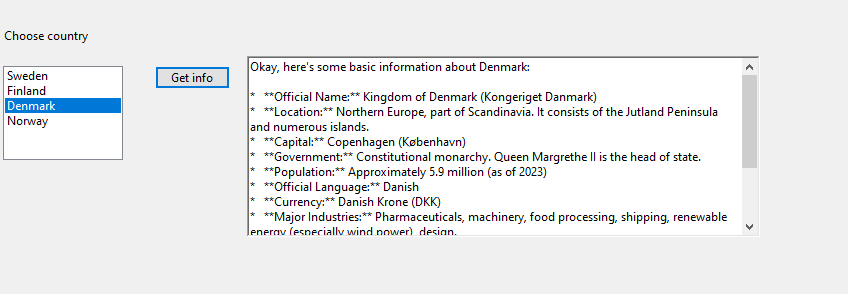
So, you can create a versatile GUI that can be used to create the prompt and
get back info from Gemini AI!!!
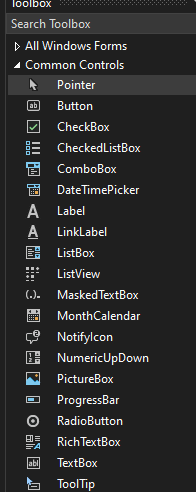
Some Windows Forms project gui options here:
Web APP test
Here is the app on a browser
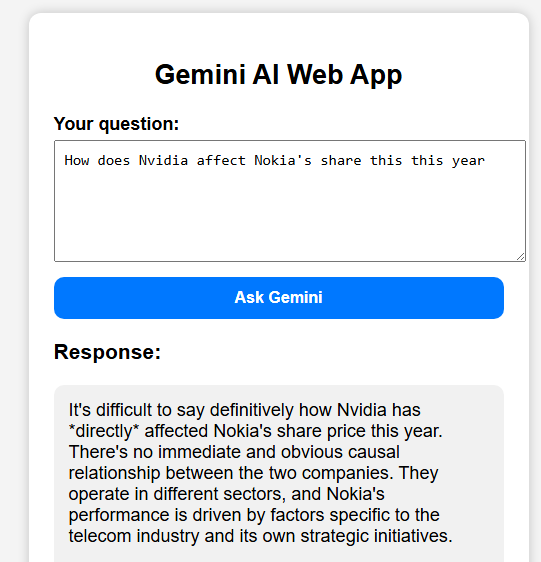
It is easier to write the prompt and read answers when we have a proper UI.
Yes. code is here
<!DOCTYPE html> |
<html lang="en"> |
<head> |
<meta charset="UTF-8"> |
<title>Gemini Web App</title> |
<style> |
body { |
font-family: Arial, sans-serif; |
background: #f4f4f4; |
display: flex; |
justify-content: center; |
padding: 40px; |
} |
|
.container { |
width: 450px; |
background: #fff; |
padding: 25px; |
border-radius: 12px; |
box-shadow: 0 0 12px rgba(0,0,0,0.2); |
} |
|
h2 { text-align: center; } |
|
label { |
font-weight: bold; |
} |
|
textarea { |
width: 100%; |
height: 100px; |
padding: 10px; |
margin-top: 5px; |
resize: vertical; |
font-size: 15px; |
} |
|
#responseBox { |
margin-top: 20px; |
background: #f1f1f1; |
padding: 15px; |
border-radius: 10px; |
min-height: 40px; |
white-space: pre-wrap; |
} |
|
button { |
margin-top: 10px; |
width: 100%; |
padding: 12px; |
font-size: 16px; |
font-weight: bold; |
background: #0078ff; |
color: #fff; |
border: none; |
border-radius: 10px; |
cursor: pointer; |
} |
|
button:hover { |
background: #005fcc; |
} |
</style> |
</head> |
<body> |
|
<div class="container"> |
<h2>Gemini AI Web App</h2> |
|
<label>Your question:</label> |
<textarea id="userInput" placeholder="Type your query here..."></textarea> |
|
<button onclick="sendToGemini()">Ask Gemini</button> |
|
<h3>Response:</h3> |
<div id="responseBox">Waiting...</div> |
</div> |
|
<script> |
const API_KEY = "XXXXXXXXXXXXXXXX"; |
|
async function sendToGemini() { |
const userText = document.getElementById("userInput").value; |
const responseBox = document.getElementById("responseBox"); |
|
responseBox.textContent = "Thinking..."; |
|
const url = `https://generativelanguage.googleapis.com/v1beta/models/gemini-2.0-flash:generateContent?key=${API_KEY}`; |
|
const body = { |
contents: [{ |
parts: [{ text: userText }] |
}] |
}; |
|
try { |
const result = await fetch(url, { |
method: "POST", |
headers: { "Content-Type": "application/json" }, |
body: JSON.stringify(body) |
}); |
|
const data = await result.json(); |
|
if (data.candidates) { |
responseBox.textContent = data.candidates[0].content.parts[0].text; |
} else { |
responseBox.textContent = "Error: " + JSON.stringify(data); |
} |
} catch (err) { |
responseBox.textContent = "Request failed:\n" + err; |
} |
} |
|
</script> |
|
</body> |
</html> |
The main problem is here the visibility of API key!
Another test using web
Here we give an image that AI uses to get answers:
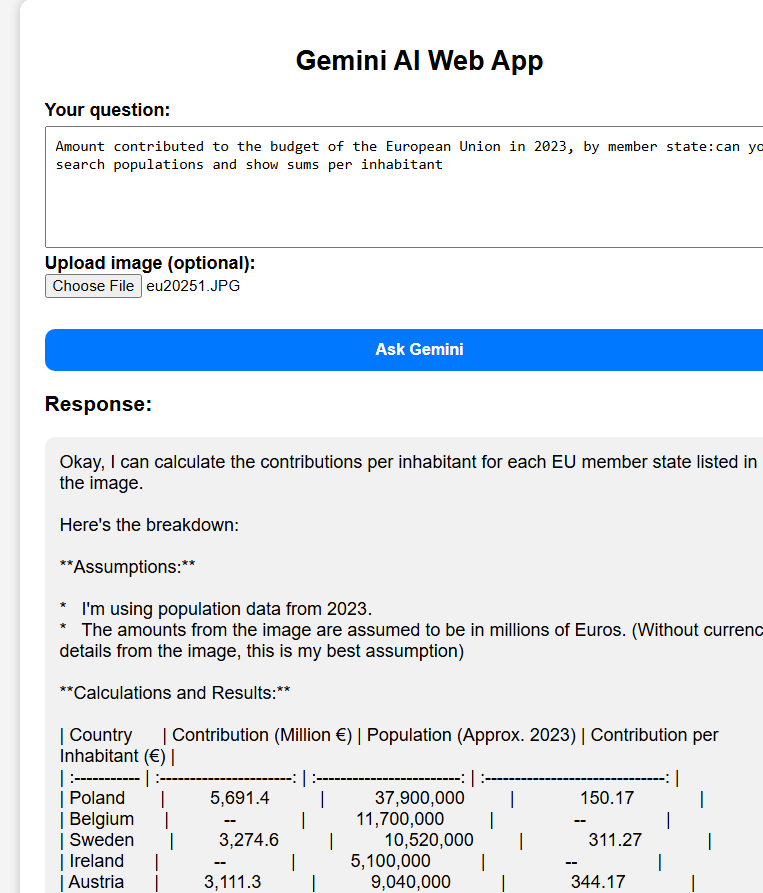
Image is here

How to get free Gemini Api Key

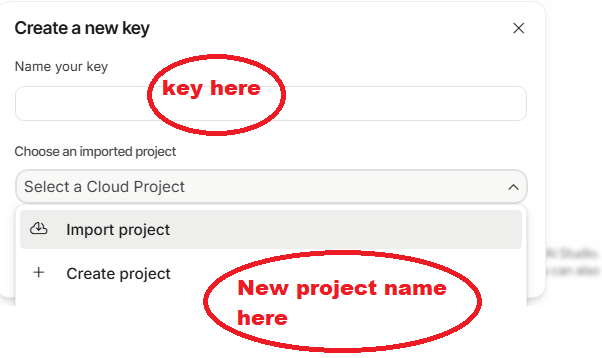
Do not show your API Key!!!
There are some choices to keep it secret (e.g. serverside solutions)